








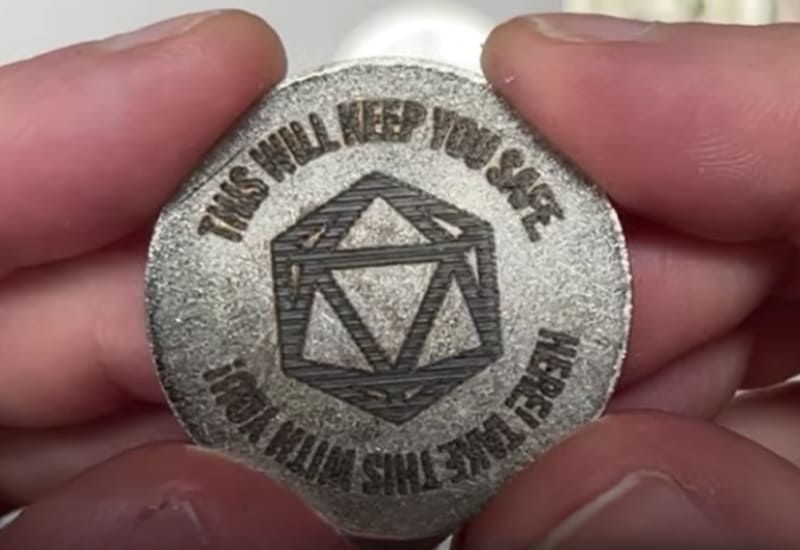
Best Laser Engraving Stainless Steel Settings (Fiber and Diode Laser Engravers)
The best settings for engraving stainless steel vary depending on the type of laser engraver machine you are using, as well as the type of finish you are trying to achieve. Generally, fiber laser engraving machines are the ideal choice for stainless steel engraving; CO2 laser engravers and diode lasers can also be used if you make some accommodations (which we will discuss later).
So, because each machine interacts with steel differently, the best settings for stainless steel engraving will vary depending on which of them you are using.

Fiber Laser Engraving Stainless Steel Settings (20W – 100W)
Fiber laser engravers are the gold standard for stainless steel engraving, largely because of a process called annealing. Annealing uses heat to pull carbon to the surface, and what makes it so great is that it creates a permanent dark mark without physically carving into the metal.
Best Settings for Dark Annealing (Smooth, Dark Finish)
| Parameter | Recommended Setting | Notes |
| Power | 40% – 60% | Moderate power range |
| Speed | 15 – 250 mm/s | Slow engraving speed |
| Frequency | 20 – 50 kHz | High frequency |
| Line Interval / Spacing | 0.015 – 0.025 mm | Tight spacing for greater detail |
- Key tip: Always defocus the laser head by raising it 3 mm-5 mm away from the workpiece. This spreads heat evenly across the surface instead of vaporizing the metal.
Best Settings for Deep Engraving (3D Recessed)
| Parameter | Recommended Setting | Notes |
| Power | 90% – 100% | High power range |
| Speed | 200 – 500 mm/s | Moderate engraving speed |
| Frequency | 20 – 30 kHz | Low frequency |
For physically carving into the material (i.e, so the text can be felt or paint-filled), you need aggressive power and multiple overlapping passes.
Key tip: Enable cross-hatching between passes, alternating angles by 45° or 90°. This removes material cleanly and prevents slag or weld buildup.
Complete Fiber Laser Engraving Stainless Steel Settings Chart
| Engraving Goal | Parameter | Recommended Setting | Notes |
| Dark Annealing (Smooth, Dark Finish) | Power | 40% – 60% | Moderate power range |
| Dark Annealing (Smooth, Dark Finish) | Speed | 15 – 250 mm/s | Slow engraving speed |
| Dark Annealing (Smooth, Dark Finish) | Frequency | 20 – 50 kHz | High frequency |
| Dark Annealing (Smooth, Dark Finish) | Line Interval / Spacing | 0.015 – 0.025 mm | Tight spacing for greater detail |
| Deep Engraving (3D Recessed) | Power | 90% – 100% | High power range |
| Deep Engraving (3D Recessed) | Speed | 200 – 500 mm/s | Moderate engraving speed |
| Deep Engraving (3D Recessed) | Frequency | 20 – 30 kHz | Low frequency |
3. Diode Laser Engraving Stainless Steel Settings
Standard visible-light diode laser engravers (445nm) reflect off bare stainless steel, which means they cannot mechanically engrave the surface without assistance. However, there are two effective approaches depending on the finish you want.

1. The Chemical Spray Method (Recommended for a Crisp Black Mark)
The most reliable method is to coat the metal with a specialized bonding agent such as CerMark or Brilliance Spray. Apply a thin, uniform layer, let it dry, engrave over it, and then wash off the excess. The laser fuses the compound permanently into the steel surface.
Starting Settings (10W – 20W Diode Lasers)
| Parameter | Recommended Setting | Notes |
| Power | 100% | Maximum power setting |
| Speed | 900 – 1,200 mm/min | Moderate engraving speed |
| Lines Per Inch (LPI) | 250 (or 0.05 – 0.1 mm line interval) | Medium line density for engraving detail |
| Passes | 1 | Single-pass engraving |
Important Note
If your laser engraver is on the lower end of the wattage spectrum (5W – 10W), slower speeds (200 – 900 mm/min) or multiple passes may be needed to fully bond the compound to the steel.
Also, make sure the spray coating is thin and uniform; a layer that's too thick will prevent the laser from generating enough heat to bond the compound to the metal underneath.
2. Direct Oxidation Marking (No Spray)
Without a spray coating, a diode laser can only cause localized oxidation, which changes the color of the steel surface. This requires less raw power and typically produces a gold or blue heat tint.
Starting Settings (For Bare Stainless Steel)
| Parameter | Recommended Setting | Notes |
| Power | 100% | Maximum power setting |
| Speed | 25 mm/s (1,500 mm/min) | Slow engraving speed |
| Line Interval | 200 lines/cm (approx. 0.127 mm interval) | Medium line spacing for controlled engraving |
| Passes | 1 – 3 | Adjust based on the desired heat tint effect |
Complete Diode Laser Engraver Stainless Steel Settings
| Engraving Goal / Material | Parameter | Recommended Setting | Notes |
| Starting Settings (10W – 20W Diode Lasers) | Power | 100% | Maximum power setting |
| Starting Settings (10W – 20W Diode Lasers) | Speed | 900 – 1,200 mm/min | Moderate engraving speed |
| Starting Settings (10W – 20W Diode Lasers) | Lines Per Inch (LPI) | 250 (or 0.05 – 0.1 mm line interval) | Medium line density for engraving detail |
| Starting Settings (10W – 20W Diode Lasers) | Passes | 1 | Single-pass engraving |
| Starting Settings (Bare Stainless Steel) | Power | 100% | Maximum power setting |
| Starting Settings (Bare Stainless Steel) | Speed | 25 mm/s (1,500 mm/min) | Slow engraving speed |
| Starting Settings (Bare Stainless Steel) | Line Interval | 200 lines/cm (approx. 0.127 mm interval) | Medium line spacing for controlled engraving |
| Starting Settings (Bare Stainless Steel) | Passes | 1 – 3 | Adjust based on the desired heat tint effect |
3. Engraving Powder-Coated Stainless (Tumblers / Yeti Cups)
If you're simply removing a colored coating to expose the bare stainless steel underneath a tumbler or Yeti cup, you need less power than for deep engraving.
- Power: 80% – 100%
- Speed: 50 – 70 mm/s (3,000 – 4,200 mm/min)
Key tip: The laser often melts powder coat residue onto the metal, leaving the design looking dull or dirty. Scrub the finished area with LA's Totally Awesome cleaner, Dawn dish soap, or a Magic Eraser to reveal a clean, bright result.
OMTech Galvo Fibre Laser Engravers: Best Settings for Stainless Steel
If you're working with a 20W, 30W, or 50W OMTech Galvo Fiber Laser, you have the ideal toolset for stainless steel. Since fiber laser settings scale with wattage, you'll need to adjust your speed and frequency depending on which machine you're using.
However, there is a universal rule of thumb: more wattage lets you run faster or finish in fewer passes, but you must maintain the same energy density on the metal. The baseline parameters below are configured for LightBurn using a standard F160 lens (110×110mm marking area). If you're using an F290 lens, increase power or reduce speed accordingly.
Best Settings for Permanent Dark Annealing (No Surface Texture)
Annealing pulls carbon to the surface to create a crisp, dark mark without digging into the metal. The goal is controlled heating, not vaporization.
- Frequency: 40 – 50 kHz (high, to ensure smooth overlapping pulses)
- Hatch Settings: 0.015mm – 0.02mm line interval, 90° cross hatch
Here is a trick to use to spread the beam slightly: Raise your Z-axis focal height by +1.5mm to +3.0mm past perfect focus and heat the metal evenly rather than piercing it.
| Machine Wattage | Power (%) | Speed (mm/s) |
| OMTech 20W | 70% – 85% | 200 – 300 |
| OMTech 30W | 50% – 65% | 300 – 450 |
| OMTech 50W | 35% – 45% | 500 – 700 |
2. Best Settings For Deep Clean Engraving (3D Recessed)
For deep engraving ( badges, stamps, or designs intended to be paint-filled), you want a tight, focused beam that vaporizes the metal.
- Frequency: 20 – 30 kHz (low, to maximize peak pulse energy)
- Focus: Perfect focus (use autofocus or red dots precisely on the surface — do not defocus)
- Hatch settings: Multi-hatch strategy in LightBurn with at least 3 angles (0°, 45°, 90°) to prevent the laser from carving deep trenches or ridges
- Passes: 5 – 30, depending on desired depth.
Galvo 20W, 30W and 50W Fiber Laser Engravers
| Machine Wattage | Power (%) | Speed (mm/s) |
| OMTech 20W | 90% – 100% | 300 – 500 |
| OMTech 30W | 90% – 100% | 600 – 800 |
| OMTech 50W | 85% – 95% | 1,000 – 1,500 |
3. Best Settings For High-Contrast White / Frost Marking
This technique is ideal for barcodes, serial numbers, or creating contrast against a dark annealed background. It micro-roughens the steel surface so it reflects light as white.
- Frequency: 50 – 60 kHz (maximum)
- Hatch Settings: 0.03mm – 0.04mm line interval (wider spacing than annealing)
| Machine Wattage | Power (%) | Speed (mm/s) |
| OMTech 20W | 35% – 45% | 800 – 1,000 |
| OMTech 30W | 25% – 35% | 1,200 – 1,500 |
| OMTech 50W | 15% – 25% | 2,000 – 2,500 |
Critical Galvo Workflow Tips
- Use the "cleaning" pass: Deep engraving leaves behind an ugly, sticky black slag. In LightBurn, add a final layer immediately after your deep engraving pass and run it at high speed (2,000 mm/s), low power (10% – 15%), and maximum frequency (60 kHz). This acts like an eraser, polishing away the soot to expose bright, clean metal underneath.
- Stainless steel grade matters: Settings that work perfectly on 304 stainless steel may produce different results on 316 (marine grade) or 400-series magnetic steels. Always run a test grid on a scrap piece of the same material before committing to your final workpiece.
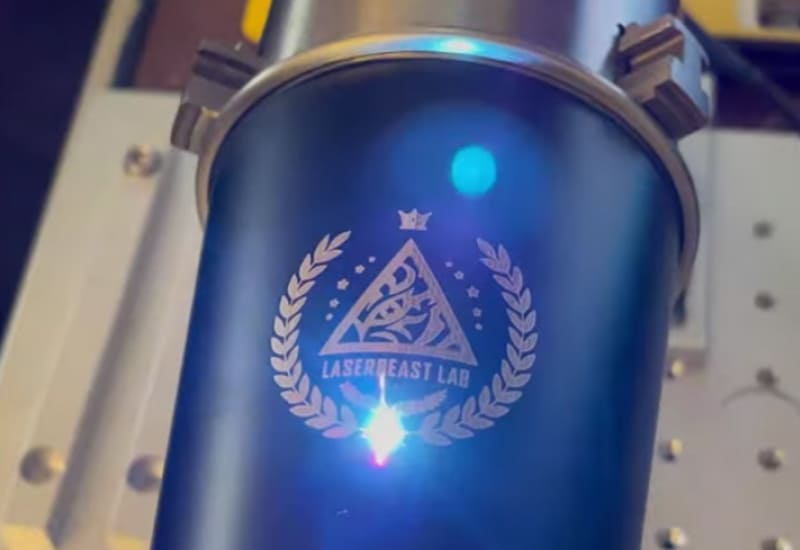 How to Dial In Your Settings Using LightBurn's Material Test Generator
Rather than guessing, use LightBurn's built-in Material Test Generator to automatically vary speed and power across a grid, so you can find the exact sweet spot for your specific OMTech machine.
Step 1: Open the Material Test Tool
- Open LightBurn.
- Confirm your OMTech fiber laser profile is selected in the bottom-right Laser window.
- In the top menu bar, go to Tools → Material Test.
Step 2: Configure the Grid Parameters
A window will appear with two axes. Map one to Speed and the other to Power. Set Up the Axes:
- X Axis (Columns): Speed (mm/s)
- Y Axis (Rows): Power (%)
- Count: Set both X and Y to 10 (creates a clean 10×10 grid)
- Box Size: 5.0mm × 5.0mm (keeps the test compact and avoids wasting material)
Input Your Test Limits based on your machine:
| Machine | Speed (X) Min/Max | Power (Y) Min/Max |
| OMTech 20W | 100 – 800 mm/s | 30% – 100% |
| OMTech 30W | 200 – 1,200 mm/s | 25% – 100% |
| OMTech 50W | 400 – 2,000 mm/s | 15% – 90% |
Step 3: Configure the Base Material Settings (Critical for Fiber)
The grid only varies the speed and Power automatically. You must manually set Frequency, Hatch, and Focus to target the specific finish you want. Click Edit Material Settings inside the Material Test window.
Mode A: Dark Annealing
- Interval: 0.015mm – 0.020mm
- Frequency: 45 – 50 kHz
- Physical setup: Raise the Galvo Z-axis head +2.0mm past perfect focus before starting.
Mode B: Deep Carving
- Interval: 0.025mm
- Frequency: 25 – 30 kHz
- Physical setup: Leave autofocus at its exact zero focal point.
Step 4: Enable Labels and Run
- On the right side of the window under Options, check Edit Text Settings.
- Set label power conservatively (e.g., 20% power, 1,000 mm/s) so the labels don't distort the metal.
- Click Preview to confirm the grid fits your scrap piece.
- Put on your safety glasses, place your scrap piece under the lens, set your focus, and click Frame, then Start.
What to Look For on Your Finished Grid
- The perfect anneal: A deep, rich black square that feels completely smooth when you run your fingernail across it. If it feels rough, the speed was too slow, or the power was too high, causing vaporization instead of annealing.
- The perfect deep cut: Clean, sharp edges with minimal bubbling or slag around the borders.
Tips for Maximizing Your Laser Engraver Settings
- Focus is everything: Precise focus is critical for consistent results. For annealing, a slight defocus of 1mm – 3mm can improve heat distribution, but for deep carving, stay at perfect focus.
- Clean the metal first: Always wipe the stainless steel with rubbing alcohol before engraving to remove oils, fingerprints, and contaminants that can affect mark quality.
- Use Masking tape: Apply low-tack paper transfer tape over the wood surface before cutting or engraving. The laser will burn through the tape, protecting the surrounding wood from dark smoke stains and sticky resin residue.
- Grain orientation: Always program your engraving lines to run perpendicular to the natural wood grain. Engraving parallel to the grain often yields an uneven, blotchy depth.
- Sanding and sealing: After cutting, gently sand the edges with 400-grit sandpaper to remove minor burrs. Wipe the pieces down with denatured alcohol to lift lingering soot, and seal the finished board with a clear polyurethane coat to preserve the contrast.
Final Thoughts on Laser Engraver Settings for Stainless Steel
Laser engraving stainless steel is as much about understanding your machine as it is about choosing the right settings.
While fiber lasers remain the best option for producing permanent, high-contrast marks and deep engravings, diode lasers can also deliver impressive results when paired with marking sprays or used for oxidation marking.
- The key is matching your power, speed, frequency, and line spacing to the finish you want rather than relying on a single set of universal settings.
- Remember that every machine, lens, stainless steel grade, and project is slightly different. The settings in this guide are intended as reliable starting points, not fixed rules.
Running a quick material test before engraving your final workpiece can save time, reduce wasted material, and help you achieve cleaner, more consistent results. You may also be interested in LightBurn photo settings and which work best for different projects.


![[Latest] Diode Laser vs. CO2 Laser vs. Fiber Lasers - Complete Guide](http://omtech.com/cdn/shop/articles/diode-vs-co2-vs-fiber-lasers_cad89d19-589c-4837-a019-48d69698f6f5.jpg?v=1789898499&width=200)

