













10 Laser Engraving Terms You Must Know
One of the things you will quickly realize if you have just bought a laser engraver, or are thinking about getting into the laser engraving business, is that people throw around a lot of technical terms. DPI, PPI, vector, dithering… it can feel like a different language at first.
But it is important, not only to know what these terms mean, but also how they can help you on your journey to mastering laser engraving. In truth, these are terms that describe processes or items that can help you fix problems faster, get cleaner engravings, avoid wasting materials, and work more confidently and efficiently.
Think of it like cooking. Even if you are not a chef, you still need to know what “medium heat” means if you want consistent results.
1. DPI (Dots Per Inch)
DPI in laser engraving means “dots per inch,” and it refers to how many dots (or pixels) are engraved per inch on the material. DPI directly affects how much detail your engraving produces, and it also controls the amount of overlap you will get between the engraved dots.
DPI is one of the technical details of laser engraving, and it usually takes some time and practice to master because it is not very straightforward. You cannot just set a high DPI and start engraving: you have to deliberately choose the appropriate DPI based on the material you are working with.
For example, if you’re engraving a photo on acrylic, increasing the DPI can make the image sharper. But if you go too high, you may end up with a cloudy or overburned look instead of crisp detail.
As a rule:
-
Wood engraving often looks better at lower DPI (it prevents overburn)
- For acrylic engraving, you need moderate DPI for a clean frosted look. Too high, and you’re just re-burning the same area without gaining detail.
You have to pay strict attention to DPI when you are engraving photos or detailed artwork, working on acrylic, glass, or coated metals where clarity matters, or when adjusting your machine settings to find the right balance between production speed and quality.
2. PPI (Pulses Per Inch)
PPI in engraving stands for “Pulse Per Inch”, and it refers to how many laser pulses are fired per inch of movement. It essentially determines how continuous or “connected” your laser output is. It affects whether your cuts will be smooth or dotted, and whether engraving will look consistent or uneven.
A practical way to understand PPI is to think of it as the setting that controls how “solid” your laser line will be.
- Low PPI gives a more disconnected, perforated effect
- High PPI gives smoother, cleaner cuts
Laser cutting acrylic with low PPI might leave rough edges. For smoother cuts, you have to increase the PPI. But keep in mind that there is a risk of melting or excessive residue when the PPI is too high.
Though it is a widely used term in laser engraving, you mostly have to deal with PPI when laser cutting, especially if you have to cut materials like acrylic or wood. Usually, you adjust it when switching between engraving and cutting modes or dialling in the edge quality.
3. Line Density
Line density in laser engraving refers to how closely the engraving lines are spaced together. It is closely tied to DPI, and it controls how “filled-in” your engraving looks.
If your engraving looks like a series of parallel lines instead of a solid fill, this is the setting you adjust first. Your line density is probably too low, and increasing it will fill in the gaps for a smoother finish.
Line density is especially important when you need your engraving to look professional. You must pay close attention to it when:
- Engraving logos, filled text, or solid shapes
- Trying to eliminate visible scan lines
- Adjusting for material response
4. Air Assist
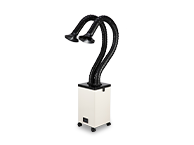
Air assist in laser engraving is the stream of air that is directed at the laser point during engraving or cutting. The two main roles of the air assist system are to keep the residue away (so it doesn't stick) and to reduce burning.
However, what makes air assist such a big deal in laser engraving or cutting is that it has a huge impact on the quality of the final product. In fact, if your engravings look dirty or burned, the issue often is a lack of airflow. It is almost always used during laser cutting, but you need it if you are engraving on wood or acrylic.
- For wood engraving, air assist minimises charring
- For acrylic to minimise residue buildup
Engraving wood without air assist often leaves heavy charring. Turn it on, and suddenly your engraving looks cleaner with less soot. Air assist is one of the easiest ways to instantly improve engraving quality. And you can always learn how to upgrade your laser engraver with air assist.
5. Dithering
Dithering in laser engraving is a technique that uses patterns of dots to simulate shading in images. Dithering is essential for engraving photos or grayscale images because it turns a flat image into something that looks like it has depth and shading, even though the laser only burns in one tone.
This explains why dithering is so important in portrait engraving: it essentially determines how smooth the shading looks. Different dithering patterns (like Jarvis or Floyd-Steinberg) can dramatically change the final image.
Dithering is a technique you will have to master, especially if you plan to do photo engraving, work with grayscale images or create depth illusion on flat materials.
6. Dot Duration
In laser engraving, dot duration is how long the laser stays on for each dot. The dot duration controls how deep and dark your engraving will appear, but almost at a micro level.
Instead of cranking up power (which can get messy), you can make subtle improvements by adjusting the dot duration to change how much energy is applied at each point. No need to change your overall speed or power settings.
If your image looks too light, for example, increasing dot duration can deepen the engraving without changing speed or power too drastically. You will mostly use it when:
- Fine-tuning photo engravings
- Adjusting darkness without overburning
- Working with sensitive materials
7. Vector
In laser engraving, “vector” refers to a type of laser engraving file or engraving method that is based on paths (lines and curves), as opposed to pixels. Laser cutting and clean line engraving are always done in vector format: vector paths tell the laser exactly where to go with precision. This is what gives you clean cuts and sharp outlines.
You use the vector format when:
- Cutting shapes out of material
- Engraving text and outlines
-
Engraving logos or designs on all manner of objects.
Here’s a practical insight: if you want crisp edges, you use vector. Raster will never give you that same level of precision for outlines. Logos and text are usually engraved as vectors. This gives you sharp, precise edges instead of pixelated results.
8. Raster Engraving
"Raster" in laser engraving means engraving line-by-line, like how a printer works. Raster is slower than vector, but it is better if you want greater detail: it fills areas better and engraves complex designs.
Raster engraving is what you go for when engraving images, photos or filled graphics, adding depth to designs, or creating background textures. If you’re engraving a photograph onto wood or acrylic, for example, you are using raster mode, not vector.
Most laser engraving projects use a mix of both vector and Raster. Raster for fills and images, while vector for outlines and cuts. Understanding when to switch between the two is key.
9. Power (%)
The power of a laser engraver machine is a measure of the intensity of its laser output. The laser output matters because it determines how deep or dark the engraving is. Too much power on acrylic can cause melting or fogging. Too little power might not mark the surface at all.
The “typical power” of a laser engraver varies a lot depending on the type of laser (diode, CO₂, fibre, etc.) and whether you’re talking about hobby use, small business production, or industrial work. Once you break it down by category, the ranges become much clearer.
Typical Laser Power for Different Laser Engravers
| Laser Type | Typical Power Range | Main Use |
| Diode | 5W – 60W | Hobby engraving, light cutting |
| CO₂ | 40W – 150W+ | Wood, acrylic, general use |
| Fiber | 20W – 150W+ | Metal engraving |
| UV | 3W – 10W | Precision materials |
10. Speed
Laser engraving speed refers to how fast the laser head moves. Speed is one of the most important settings on a laser engraver because it (together with power) determines the depth of your engraving.
The slower the speed, the deeper the engraving; slow speed means more exposure. If your engraving is too dark, increasing speed can lighten it without changing power settings.
Laser Engraving Words and What They Mean: Reference Table
| Term | What It Means | Why It Matters |
| DPI | Dots per inch | Controls detail and resolution |
| PPI | Pulses per inch | Controls energy delivery |
| Line Density | Spacing between engraving lines | Affects smoothness and fill quality |
| Air Assist | Air flow at the laser point | Reduces burning and debris |
| Dithering | Dot pattern for shading | Essential for photo engraving |
| Dot Duration | Time laser fires per dot | Controls depth and darkness |
| Vector | Path-based design | Used for clean lines and cutting |
| Raster Engraving | Line-by-line engraving | Used for images and filled designs |
| Power | Laser intensity | Affects depth and material reaction |
| Speed | Movement speed of the laser | Balances exposure and engraving result |
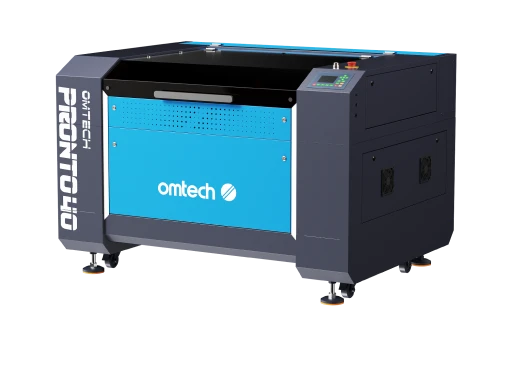
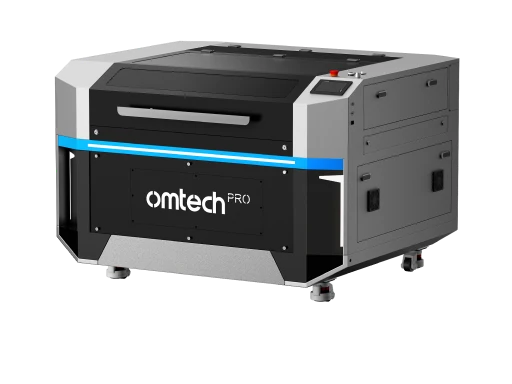
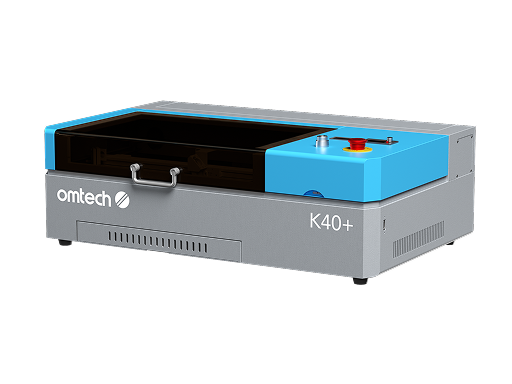
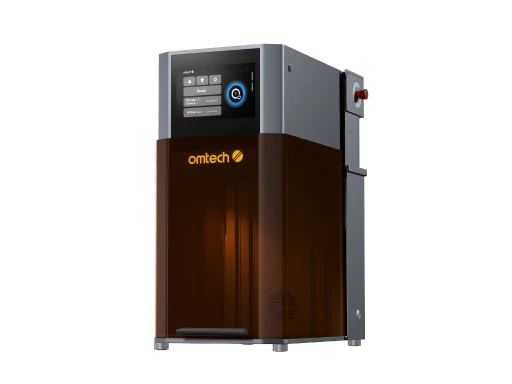
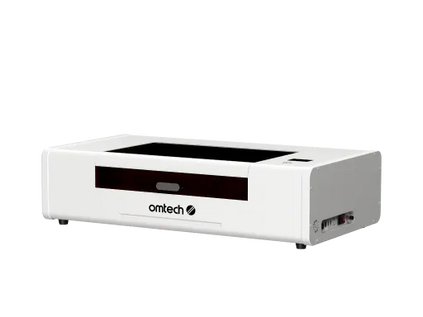
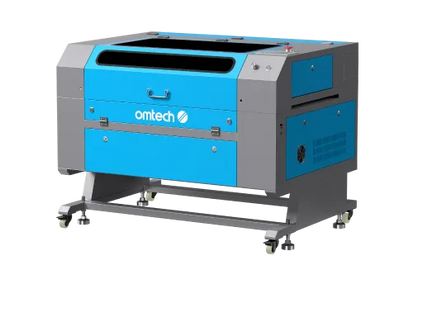
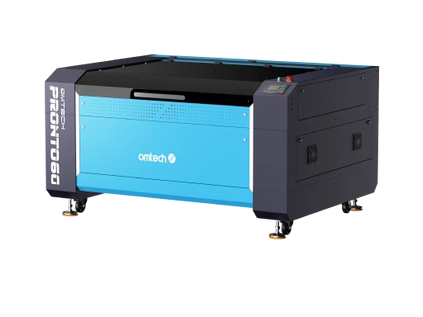
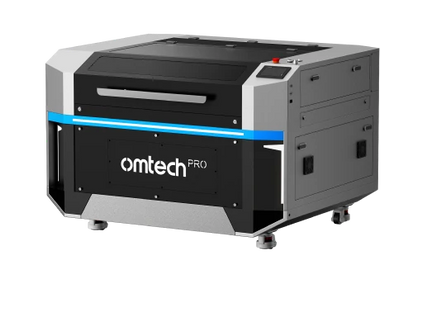
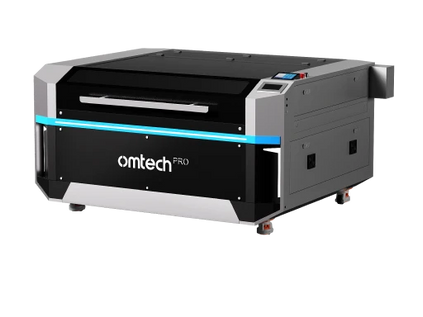
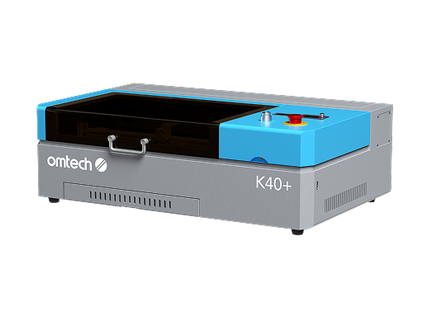
Explore Omtech's Beginner-Friendly Laser Engravers
A 60W laser engraver is often considered the entry-level option for small businesses, and that is because it is more affordable and typically good enough for engraving wood, acrylic, leather, and glass, which are the basic materials most small businesses start with.
They are also more cost-efficient to run (consume less power) and easier to operate.
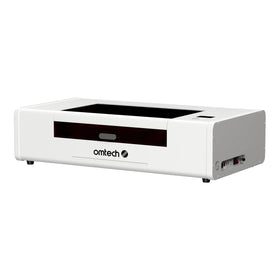
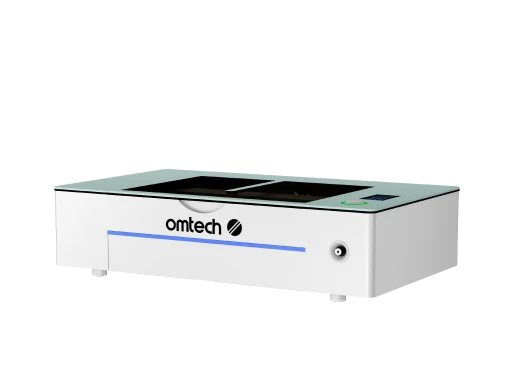
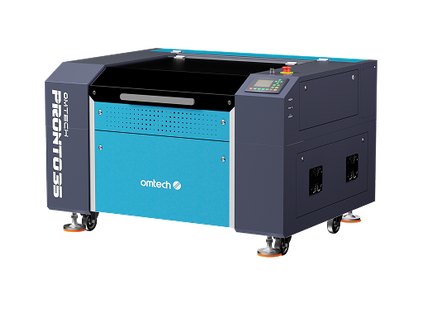
With a rated power of 60W, the OMTECH Pronto 35 is the ideal laser engraver for a beginner looking to go into the business. It engraves at a maximum recommended speed of 800 m/s, comes with a large 20-inch x 28-inch workspace, extensive software compatibility (Lightburn, RDworks, Corellaser, etc), and a laser Class 1 safety level.
With an autofocus function that helps with accuracy, such wide compatibility to different laser engraving materials and a wide workspace, this machine puts you in the best place to build the foundational skills you need while getting used to the demands of the laser engraving business.
Final Thoughts
Learning these terms isn’t about memorising definitions; it’s about understanding how your machine behaves. Once you get comfortable with them, something clicks: you stop guessing, you start adjusting with purpose, and your results become more consistent
And that’s when laser engraving really starts to feel less like trial-and-error, and more like a skill you actually control.
If you’re serious about improving your results, don’t skip this step. These terms are the foundation, and once you know them, everything else gets easier.
Explore more about starting a laser engraving business on Etsy, and how understanding these terms helps you perform better.