













Murphy’s Law: Material Settings for Laser Engravers

If you’re a beginner looking to start laser engraving, you’ve come to the right place! My name is Murphy, and today, we’ll share the laser engraving settings for different materials. DIY crafters and laser engraving businesses work with a variety of mediums, from wood and acrylic to leather and stainless steel. We’ll show you how to optimize your laser engraver speed and power settings to achieve accurate results when cutting and engraving materials.
1. Laser Settings for Wood Cutting
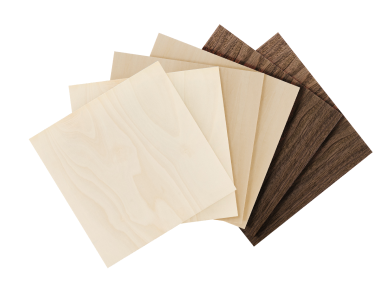
Wood is a relatively easy and aesthetically pleasing material to work with. You can achieve precise and beautiful results with the right settings on your OMTech laser cutter. Here’s how you can set up your laser cutter to cut Baltic birch wood with optimal results. Remember, these are the average settings for this type of wood and may require slight adjustments in power or speed.

Laser Cutting Wood (General Settings)
Laser settings for wood heavily depend on your machine's wattage, lens, and the wood's density. However, the universal baseline for cutting common 1/8" (3mm) plywood is:
15-20 mm/s speed at 80% power (on a 50W–80W CO2 laser)
250 mm/m at 100% power (on a 10W diode laser).
This is the baseline to start from when laser cutting wood, and from there, you can adjust based on the specifics of your laser machine.
General Laser Cutting Settings for Different Kinds of Wood
|
Type of Wood |
Laser Type |
Speed |
Power |
|
1/8" (3mm) Plywood/Balsa |
CO2 (40W - 60W) |
10–15 mm/s |
Power: 80–90% |
|
Diode (10W - 20W) |
200–300 mm/min |
Power: 100% |
|
|
1/4" (6mm) Plywood/Hardwood |
CO2 (80W) |
10 mm/s |
Power: 90% (or use 2 passes) |
Pro-Tips for Cleaner Laser Wood Cuts
Air assist is a must: A robust air supply (20–30 psi from an actual compressor) dramatically reduces charring and flare-ups.n This is an absolute must-have when laser cutting wood.
- Focus Point: Do not focus the laser directly on the surface of the wood. Drop the focal point about halfway into the thickness of the material. This will give you a cleaner edge.
- Use multiple passes: If your laser struggles with thicker woods, it is better to use multiple low-power passes instead of one slow, scorching pass.
- Make use of masking: Apply medium-tack transfer tape to the top and bottom of your wood to prevent scorch and smoke stains.
- Avoid the knots in the wood: Natural wood grain has dense spots or knots (especially in cheap plywood) that won't cut through cleanly on the first pass.
2. Laser Settings for Acrylic Cutting
Acrylic is a popular choice for its clarity and versatility. It’s strong and can be used to create anything from clear 3D puzzles to shiny medals. Whether you’re crafting custom signs or detailed art, these settings will help you achieve clean, smooth cuts. Explore with different colors and finishes of acrylic to see your vibrant creations come to life.

3. Laser Settings for Leather Cutting
Leather offers a unique texture and durability for sophisticated, custom projects ranging from fashion accessories to art. Take your craftsmanship to the next level by experimenting with these leather settings. Different types of leather might behave differently, so play around with the settings to get optimal results.

Laser Cutting Leather: General Settings for All Engravers
The best settings for laser cutting wood will vary wildly based on two factors: your laser type (CO2 vs. Diode) and leather thickness (measured in ounces or millimeters). This is because leather is an organic material; there is no single universal setting. Always run a test matrix on scrap material first.
Diode Lasers (e.g., 10W - 20W Optical Output) usually require slower speeds to cleanly execute through-cuts on standard tooling leather.
CO2 machines handle organic materials much faster, minimizing the time heat sits on the edge.
General Settings For Laser Cutting Leather
|
Laser Type |
Type/Thickness of Leather |
Speed |
Power |
Passes |
|
Diode Laser |
3-5 oz (1.2 - 2.0mm) Veg-Tan |
8 – 10 mm/s |
80% – 100% |
1 – 2 |
|
CO2 Laser 40W - 60W, K40,OMTech) |
3-5 oz (1.2 - 2.0mm) Veg-Tan |
25 – 30 mm/s |
40% – 50% |
1 |
|
8 oz (~3.0mm) Heavy Veg-Tan |
15 – 20 mm/s |
80% – 90% |
2-3 |
Safety Tips When Laser Cutting Leather
- Use vegetable-tanned (Veg-Tan) leather only: Veg-Tan leather is the standard for laser processing. It cuts cleanly and leaves a workable edge.
- Avoid chrome-tanned leather: Chrome tanning uses heavy chemicals. Burning it releases dangerous, pungent off-gases that can harm your respiratory tract and heavily corrode your laser hardware over time.
- Do not use faux/synthetic leather, unless it is laser-certified: Only use synthetic leather specifically labeled "Laserable Leatherette." Most generic faux leathers from craft stores are made of PVC (polyvinyl chloride). Laser cutting PVC generates toxic chlorine gas and hydrochloric acid, which can destroy your lungs and ruin your laser mirrors and rails.
Tips for Removing Char and Odor When Laser Cutting Leather.
Because laser processing literally burns organic skin, charring and a "burning flesh" smell are inevitable. Here are a few definitive tricks our users at OMTech employ to optimize results:
- Apply Masking Tape: Apply blue painter's tape or wide paper transfer masking tightly to both sides of the leather before running the job. This prevents sticky smoke tar and amber flash burns from staining the surface faces.
- The wetting trick: Many seasoned makers spray or soak their veg-tan leather with water until damp right before cutting. This drastically reduces edge charring, limits flare-ups, suppresses smoke, and helps keep the leather flat on your honeycomb bed.
- Use max air assist: Turn your air assist all the way up. It blows smoke out of the path of the beam instantly, ensuring a cleaner cut line and preventing the edges from baking into brittle crust.
- Pay attention to post-cut cleaning: Make sure to scrub charred edges lightly with a toothbrush and a gentle degreaser like LA's Totally Awesome or saddle soap to clear loose soot before burnishing.
4. Settings for Laser Cutting Acrylic
For 3 mm (1/8") acrylic, a baseline for a 40–50W CO₂ laser is 70–100% power at 6–15 mm/s in a single pass. For laser cutting acrylic, the standard approach is to start at high power and slow, steady speeds. Always perform test cuts on a scrap piece, as tube degradation and laser brand vary.
Standard CO₂ Laser Settings For Cutting 3 mm (1/8") Acrylic
|
CO2 Laser Type/Power |
Speed Settings |
Power Settings |
|
40W to 50W |
6–10 mm/s |
70–80% power |
|
60W to 80W |
10–15 mm/s |
65–75% power |
|
100W+ |
15–25 mm/s |
30–50% power. |
Important Tips for Laser Cutting Acrylic
- Air assist is a must: Use strong, constant air assist to prevent flames and clear out melting material. However, if you are engraving, dial down the air pressure to prevent "fallout" (cloudy or hazy edges).
- Cast vs. extruded acrylic: Use Cast acrylic if you want a clean, polished edge. Extruded acrylic will cut, but it tends to melt more, and the edge may end up gummy or flared.
- Never run the machine at 100% power: Avoid maxing out your machine's physical power; it will rapidly degrade the laser tube. Instead, cap your power around 70–85% and slow down your speed if you need a deeper cut.
- Focusing is critical: Ensure your focal point is set perfectly, usually about halfway through the thickness of the material.
- Do not remove the paper masking: Always leave the factory masking on the top and bottom of your acrylic sheet to prevent burn marks and scorching on the faces.
Acrylic Cutting With a Diode Laser: Important Warning
If you are using a diode laser (often 10W or 20W), cutting clear acrylic is notoriously difficult because the light passes right through the material. In this situation, what experienced users usually do is switch to opaque acrylics or use multiple slow passes to get the job done.
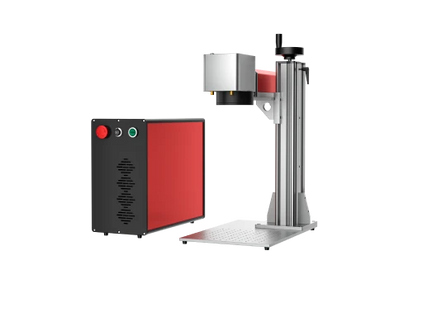
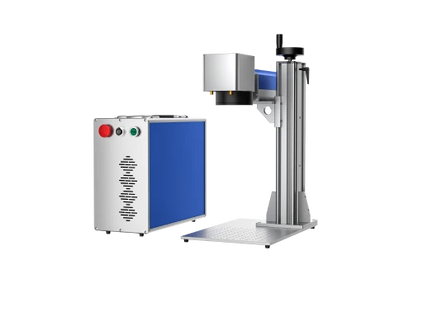
Laser Settings for Metal Engraving
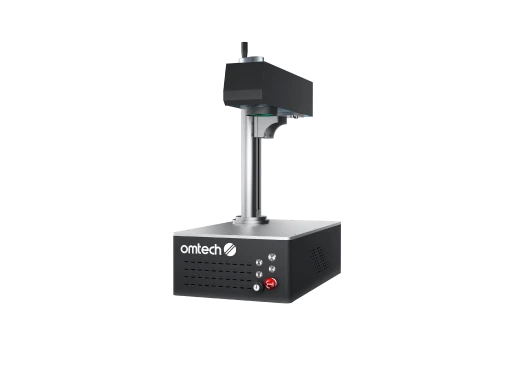
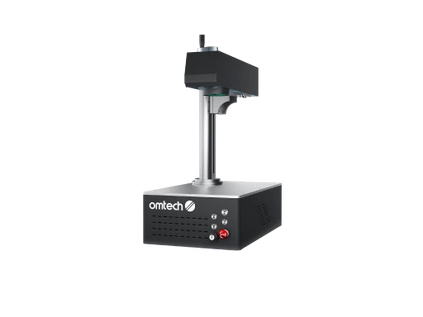
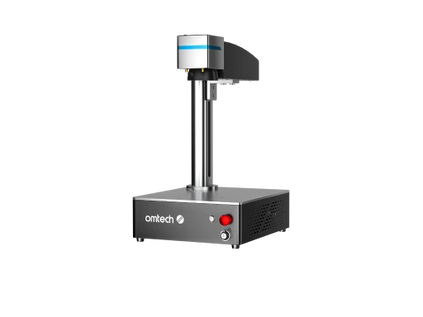
Metal laser engraving demands precise settings to achieve optimal results. Power and speed are crucial parameters for creating clean, durable, and aesthetically pleasing engravings or markings on various metallic surfaces. Remember that the ideal settings may vary depending on the specific metal type, its thickness, desired marking depth and contrast, making careful experimentation and material testing essential.
| OMTech Fiber Laser | Material | Material Size | Power(%) | Speed(mm/s) |
|
20W/30W/50W/ 60W/80W/100W |
Painted metal | Dimensions: 55 x 85 mm, Thickness: 0.5 mm | 60 | 1000 |
| Aluminum sheet | Dimensions: 55 x 85 mm, Thickness: 0.5 mm | 60 | 1000 | |
| Copper sheet | Dimensions: 55 x 85 mm, Thickness: 0.5 mm | 60 | 1000 | |
| Stainless steel 201 | Dimensions: 55 x 85 mm, Thickness: 0.5 mm | 60 | 1000 |
Laser Engraving Settings for Various Non-metal Materials
Engraving is where the magic truly happens! Now you can create truly personalized pieces by adding some flair to your acrylic, leather, or wood products. Engraving allows you to create details and texture to make your projects stand out. Here’s a guide for laser engraving leather settings and more!

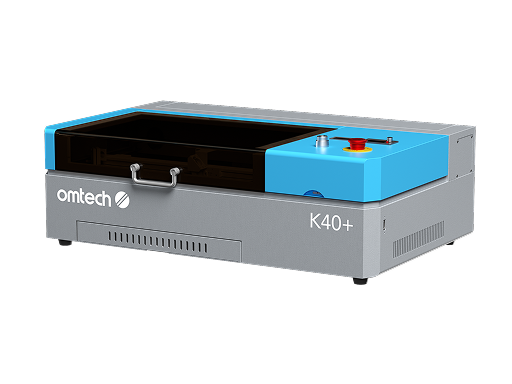
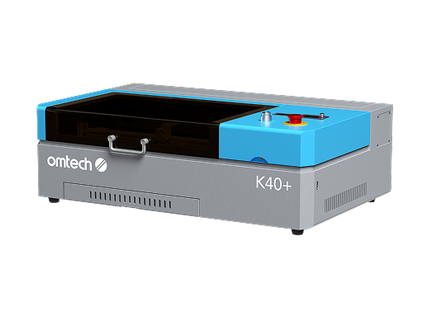
These are the laser settings for the K40+ laser machine for different materials.

Explore, Create, and Innovate with OMTech

By mastering these settings, you're well on your way to crafting impressive and professional-quality projects. Remember, these settings are simply a starting point—don’t hesitate to experiment and adjust them to suit your unique material and design requirements.
General Laser Engraving Settings for Different Materials
1. Wood Engraving Settings
There is no universal setting for laser engraving wood; the exact combination depends on your machine's wattage, laser type (diode vs. CO2), and the wood's density. As a general rule of thumb, it is to start by testing small batches at a moderate speed and low power.
|
Type of Laser |
Type of Wood |
Speed |
Power |
DPI |
|
10W Diode Laser |
Softwood / Plywood (Basswood, Birch) |
1,500–3,000 mm/min |
15%–30% power |
|
|
Hardwood (Walnut, Cherry) |
1,000–2,000 mm/min |
30%–50% power |
250–300 DPI |
|
|
CO2 Laser Engraver (40W–80W) |
Light engraving on most wood types |
400–600 mm/s |
40%–60% |
|
|
Deep engraving on |
Tips for Engraving Wood
- Use a Test Grid: Instead of guessing, generate a material test grid using software like LightBurn (available in the Material Test menu) or LaserGRBL. This will etch a grid of small squares, each with a slightly different speed and power setting.
- Use Air Assist: If you have an air compressor or air assist on your laser, turn it on. It significantly reduces scorching and charring.
- Mask Your Wood: Apply transfer tape or masking tape to the surface of the wood before engraving. When the job is done, peel it off to reveal perfectly clean edges without the burn halo.
- Manage Your Char: If your wood looks too burned, increase your speed or lower your power. If you want a deeper engrave, use multiple shallow, fast passes instead of one slow, high-power pass
2. Acrylic Engraving Settings
Acrylic engraving generally requires high speeds and low-to-moderate power to achieve a frosted white finish without melting.
Usually, the optimal setting for acrylic engraving is around 400-750 mm/s speed and 15-30% power for CO2 lasers. For best results, use cast acrylic, engrave on the reverse side (mirrored), and keep the protective film on to prevent surface damage.
Recommended Settings For Engraving Acrylic with a CO2 Laser Engraver
|
Power |
Speed |
DPI/LPI |
Passes |
|
15% – 30% |
400 mm/s – 750 mm/s |
300-500 DPI (higher for text, lower for photos) |
Single pass (multiple passes for deeper engraving) |
Diode lasers may require a lower speed (e.g., 500 mm/s at 30% power) and often benefit from placing black paper underneath for better absorption
Important Acrylic Engraving Tips
- Understand cast vs. extruded acrylic: Use cast acrylic for a high-contrast, frosted white engraving. Extruded acrylic often engraves clearly or greyish and is better for cutting.
- Engrave in reverse: If using clear acrylic, mirror your image and engrave on the back side. This leaves the front smooth and gives a deeper look.
- Use masking: Leave the paper or plastic protective covering on the acrylic while engraving to prevent smoke damage. If the acrylic is unmasked, apply masking tape or soap to prevent haze.
- Don't forget to clean up: After engraving, clean with water or mild soap.
Leather Engraving Settings
The key, when it comes to leather engraving, is to strike a balance between creating a dark mark and avoiding scorching. Generally, it is better to start with fast speeds (50–100+ mm/s) and very low power (10–30%). Also, vegetable-tanned leather is strongly preferred if you want the best and safest results.
Machine-Specific Baseline Settings for Leather Engraving
|
Laser Type |
Speed |
Power |
|
10W Diode Laser |
80 mm/s |
30-50% |
|
40W CO2 |
100 mm/s |
15-40% |
|
60W CO2 |
100 mm/s |
10-15% |
Pro-Tips for Laser Engraving Leather
- Test it first: Always run a power/speed matrix test on a scrap piece of the same hide. Natural leather has unpredictable densities and may burn at different rates.
- Keep it out of focus: Shifting your laser slightly out of focus (e.g., dropping the bed 1/8 inch) helps spread the beam, which softens fine details and reduces aggressive burning.
- Use Air Assist: Always run your air assist if your machine has it to blow away smoke and prevent scorching.
- Masking: Place blue painter's tape over the leather before engraving or cutting to keep soot from discoloring the surrounding surface.
- Always vet the leather: Stick to vegetable-tanned leather. Chrome-tanned leathers (like most fashion/garment leathers) release hazardous, toxic gases and should never be laser-engraved.
Glass Laser Engraver Settings
Laser engraving glass requires specific techniques to prevent cracking. Generally, you want to start with high speed and low-to-medium power (e.g., 70–80% power at 400–1000 mm/min) while applying a heat-absorbing coating like wet paper towels, tempera paint, or a laser marking spray.
- CO2 Lasers (40W - 100W+)CO2 lasers are absorbed natively by glass, so you do not technically need a marking agent, though many users utilize a damp paper towel to control heat.
- Diode Lasers (5W - 20W)Visible blue diode lasers pass straight through clear glass. You MUST apply a dark coating to absorb the laser energy and transfer the heat to the glass.
| Type of Laser | Speed | Power | Interval |
| CO2 Laser (40W - 60W) | 300 mm/s | 20% | 0.1 mm |
| CO2 Laser (80W - 100W) | 200 to 400 mm/s | 15% to 40% | 0.07 mm |
| 5W Diode | 800 to 1000 mm/min | 70% to 90% | |
| 10W Diode | 35 mm/s (2100 mm/min) | 90% to 100% | |
| 20W Diode | 33 to 50 mm/s (~2000 to 3000 mm/min) | 30% to 50% |
Tips for Laser Engraving Glass
- Use black tempera paint: This is the absolute favorite budget option. It must be applied in a very thin, completely uniform coat. Mix it 50/50 by weight with 91% rubbing alcohol and spray it on for a perfect coat. It rinses off completely with warm water.
- Chalkboard spray paint: Lay down 1-2 thin coats. Users report it creates cleaner, more repeatable lines than tempera, but requires 91% Isopropyl Alcohol or mineral spirits to remove.
- Wet paper towel: Commonly used by CO2 laser operators. Lay a single layer of wet paper towel flat over the glass, smoothing out all air bubbles. Turn off your air assist so it doesn't dry the paper out mid-job.
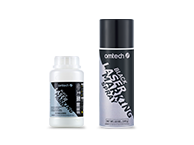
- Cold galvanizing spray/laser marking spray: Brands like OMTech spray leave a beautiful finish, while budget cold-galvanizing sprays contain titanium dioxide, which fuses to the glass under intense heat to create a dark, permanent contrast
After lasering, the surface often has soot or an ashy residue. Use a clean cloth and a specialized leather cleaner or saddle soap to gently scrub the surface and remove the fallout.
At OMTech, we're committed to empowering you with the tools and knowledge to bring your most creative ideas to life. So go ahead, explore the endless possibilities, and turn your vision into a reality with OMTech laser engravers and cutters!
Ready to Get Started?
Unlock your full potential with OMTech's versatile laser machines and comprehensive support. Explore our extensive range of laser engravers and find the perfect match for your creative ambitions. OMTech isn’t just about selling lasers; we’re here to help you achieve greatness in your crafting pursuits!